


Recently as part of upgrading my macOS to Catalina, I changed from a bash shell to Z shell (zsh). There isn’t any huge differences between the two, in fact everything has pretty much been exactly the same for me.
However, a colleague told me about a helpful plugin for zsh, called Oh My Zsh.

Oh My Zsh is an open source, community-driven framework for managing your zsh configuration.
https://github.com/ohmyzsh/ohmyzsh
Basically oh my zsh (which I will refer to as OMZ because I don’t want to keep typing it out) adds lots of wrappers and shell scripts to create shortcuts in the terminal. You can also add plugins to do even more, such as a git one for help with managing any git repositories. For example, below I have navigated into a folder for one of my projects. With OMZ and the git plugin, my terminal now shows me that it has a git repository, and I am currently working in the master branch. The little x also shows me that there are unstaged changes.
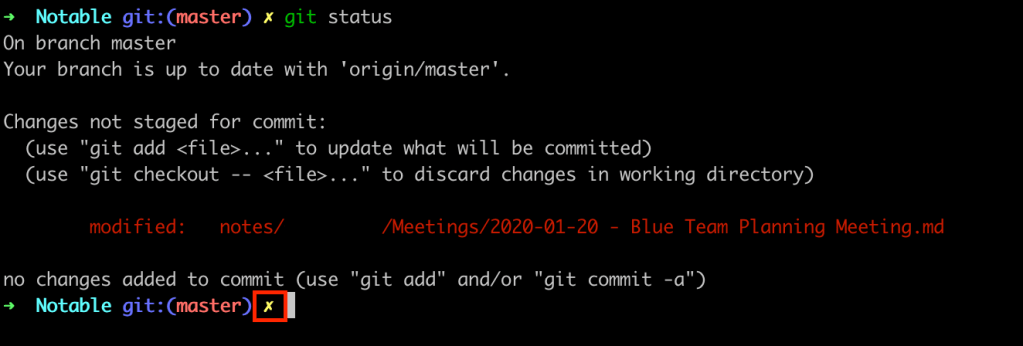
This particular repo is setup to commit changes and push to Github on every hour (see my Cron Jobs knowledge share for more info), so if I wait for that to happen…

I can now see that the little x is gone.

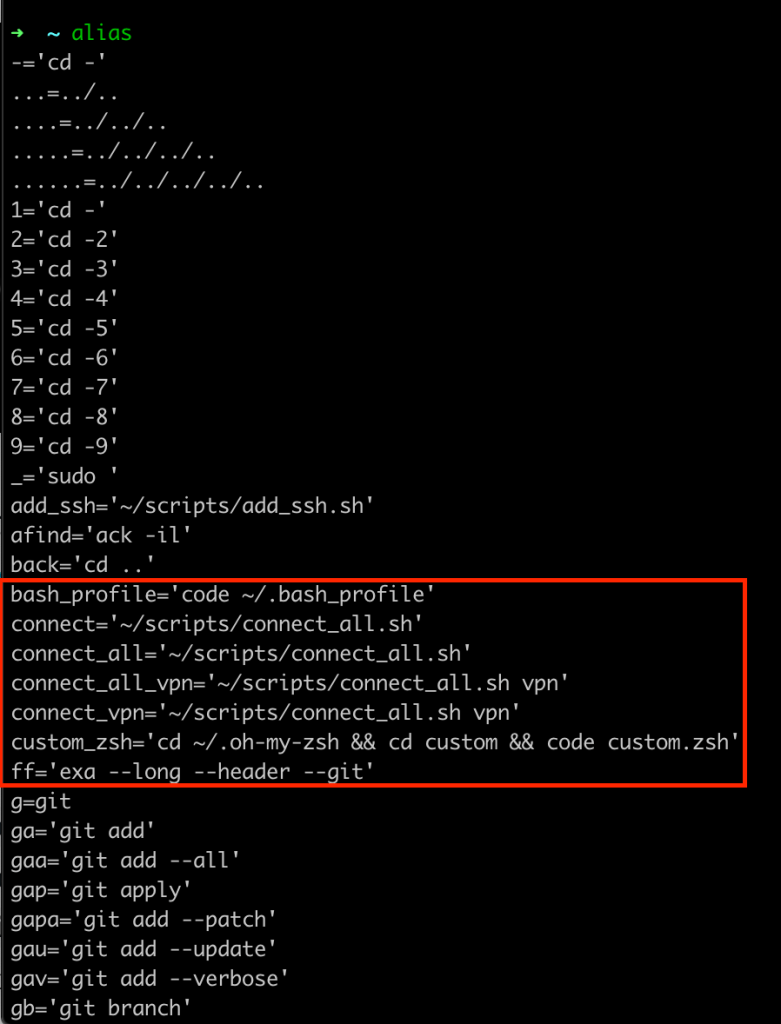
OMZ works by replacing your .zshrc file, which is the zsh version of .bash_profile. If you have read my post on bash shortcuts you may remember that .bash_profile is where I set up my alias shortcuts. When I first switched to zsh I basically cheated by adding a line in my .zshrc file directing it to look at .bash_profile instead. However now my .zshrc file is actually being used, I needed to change that. Luckily OMZ creates a file for you to add your own shortcuts!
If you navigate to the .oh-my-zsh folder, then to custom, there will be a file called example.zsh. Here is where you can add any of your own shortcuts, so I copied mine across. The nice thing with this is, if you type in alias in the terminal, you get shown a list of all the available shortcuts, and any you add to the custom file will also be included.
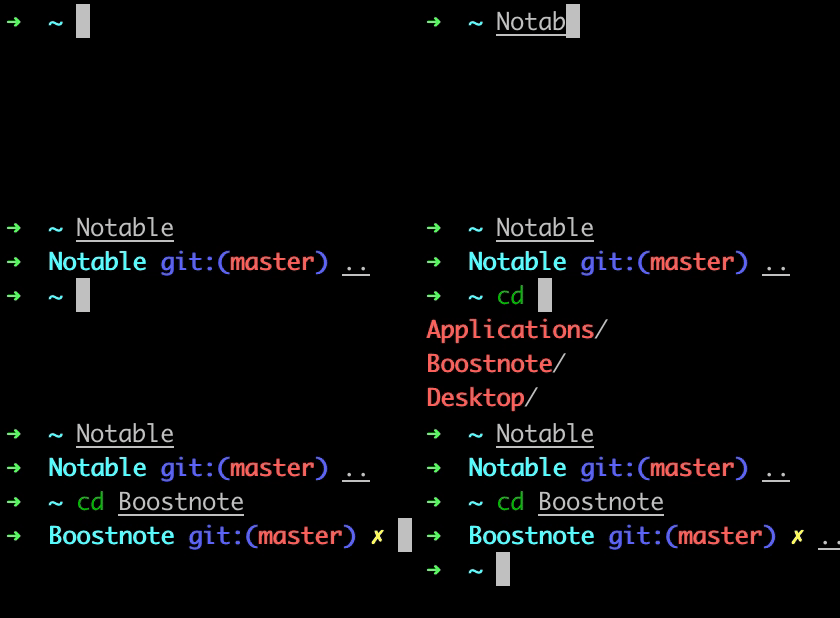
OMZ is mostly a quality of life improvement, which helps boost productivity. For example, you no longer have to type cd to navigate into or out of a folder. Also, typing cd then pressing Tab gives shows you all the folders you can navigate to, and pressing Tab again allows you to use the arrow keys to navigate between them.
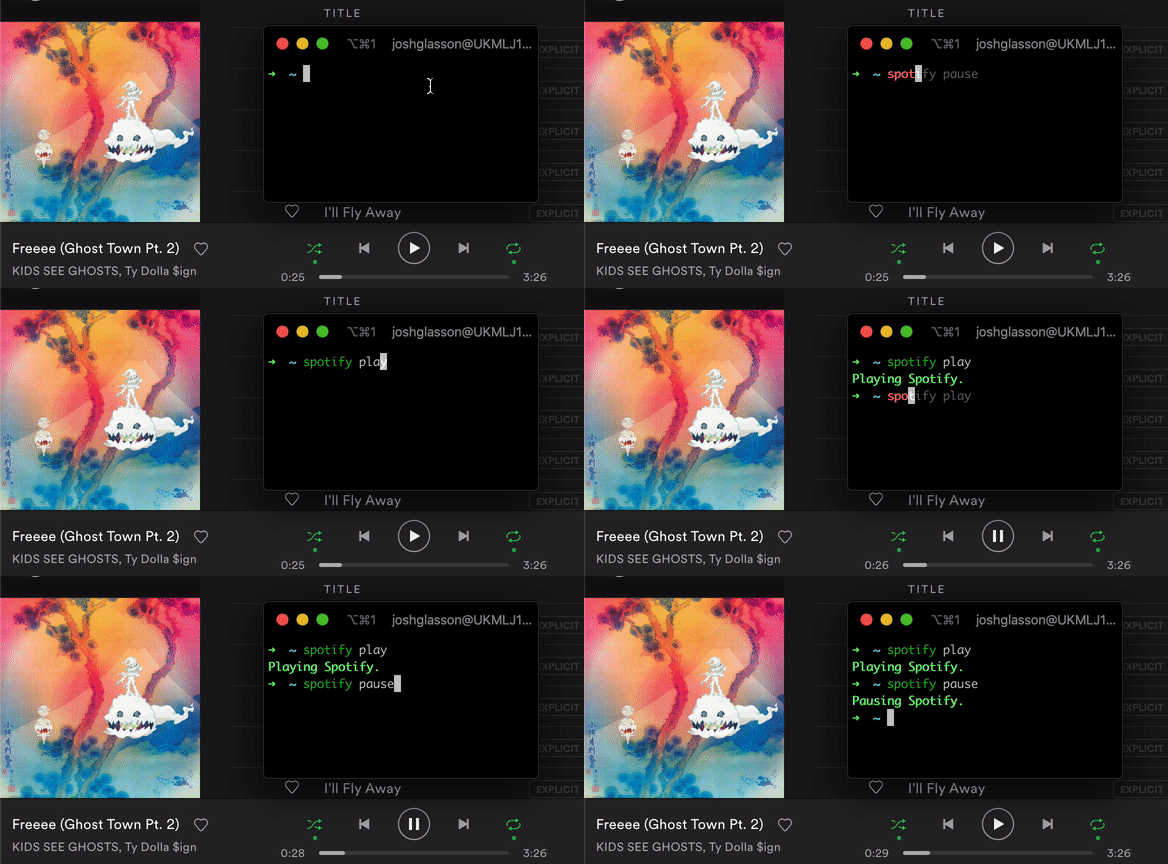
Another couple of OMZ plugins I added were osx and zsh-autosuggestions. OSX adds some utilities to help navigate macOS, and autosuggestions makes suggestions and allows you to autocomplete by pressing the → key. My favourite osx feature is the Spotify integration.
Whilst I am talking about the terminal, there are a couple more plugins I added recently outside of OMZ.
The first is called exa. exa is basically just a replacement for ls, it shows you your files in the current folder but with more detail. Below you can see the difference between ls and exa (which I have saved as a shortcut to ff).
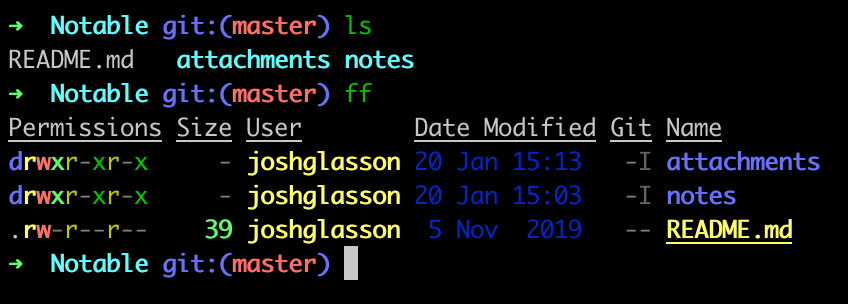
And below is an example of another useful plugin I installed:

You can find the list of all of my Knowledge Sharing posts here.
 Josh's Blog