

Automating Stuff!
In my post about command shortcuts I showed one of my bash scripts that I had written in order to automate a process and save myself some time. I wanted to talk a bit more about them and also how you can schedule them to run themselves.
Scripts
Put simply, a bash script is a text file which contains commands that you would usually run in the command line. It’s that simple! For example, one of my scripts navigates to a certain project folder containing my notes, stages any changes to git, commits them with a message stating todays date and the time, and then pushes it to my Github.

The && lets you link multiple commands into one. You could also separate them onto multiple lines, and each would run the same way.
So with that quick intro out the way, lets write a script to practice! Firstly create a new file, the file type should be .sh. I am going to call it greeting.sh.
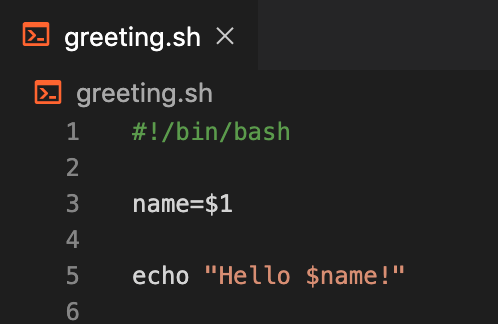
I want this script to greet us by printing ‘Hello’ to the command line when I run it. To do this, we use echo.

Now we just have to run the script, by using ./ and the file name whilst you are in the folder it is saved in. But wait…

In order to run scripts, you need to give them the correct permissions. By default they only have the below permissions:

-rw-r--r-- means that I have read/write permissions, and everyone else has read only access, but nobody has executable access. The below table from Wikipedia explains it with different possibilities.
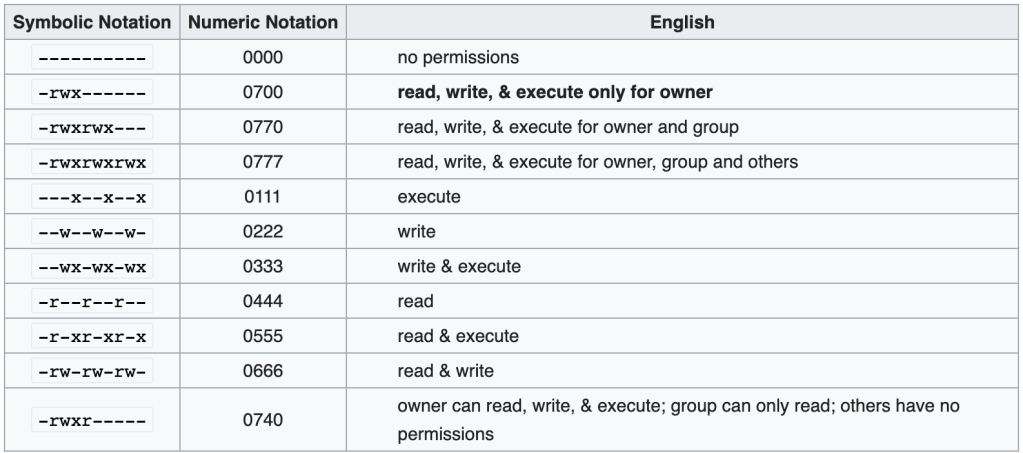
So typing chmod 700 <filename> gives me, the owner, access to execute the script. Alternatively you could run chmod +x <filename> to give everyone executable access:

Now that we have changed this, we can run the script.
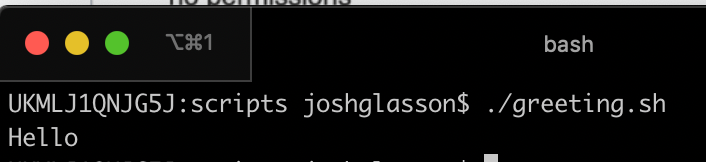
SIDE NOTE – at the top of the script, you can add #!/bin/bash. This basically tells the script you will be running it in bash, which you will be most of the time. You can leave it out, but if you try to run it outside of bash it may cause issues.
I now want to go a step further, I want to make it more personal. To do this I am going to pass a parameter through when I run the script. I want ./greeting.sh Josh to print out Hello Josh!
This again is quite easy to do. You can add variables, and assign the parameters using $. You can have as many parameters as you want, separated by spaces. In this example we just have the one, which is the name of the person we are greeting.
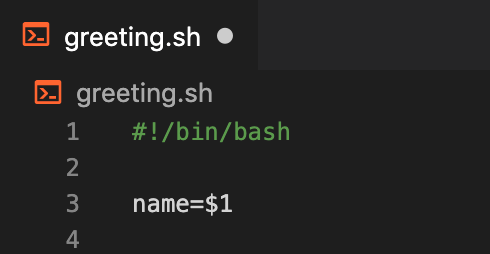
Now we can add the name to the echo.
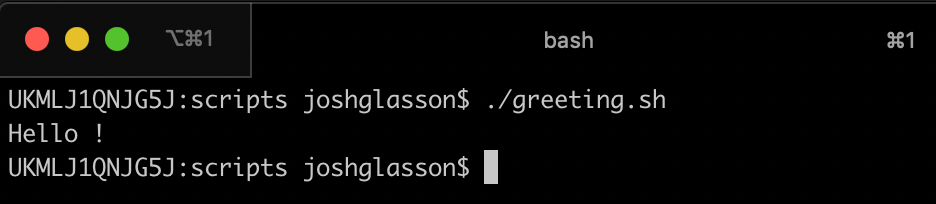
Running the script with a name results in:

Although at the moment, if we run it without a name, it looks a bit strange:
To fix this, we can put in an if statement. They work a little different in bash, using fi instead of end:
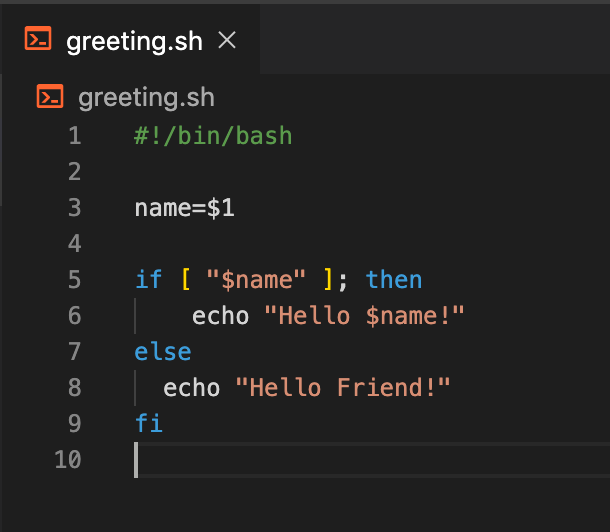
This gives us the option to leave the argument blank.
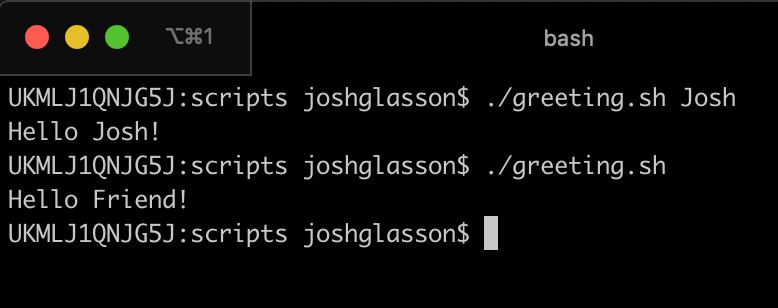
Awesome, now our script is personalised. But we can do a little better. Why not enter your birthday and have the script tell you how old you are!

set -e lets you set additional variables, like bday.$(( )) lets you performa actions like arithmetic inside.$(date -j -f %Y-%m-%d $birthday +%s) is telling the script that it needs to format the $birthday parameter from YYYY-MM-DD into epoch seconds.$(date +%s) is getting the time now in epoch seconds.timeUntil is taking one date from the other.$timeUntil/(24*3600)/365 is getting the epoch seconds and finding the difference in years.

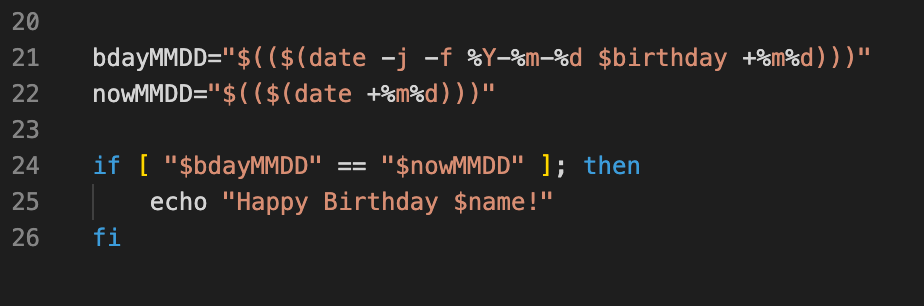
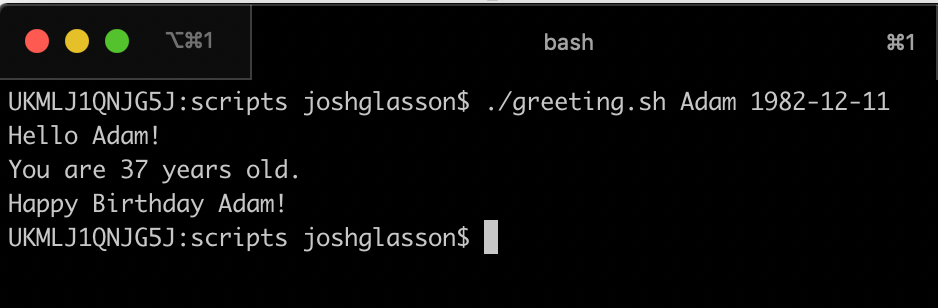
Also I added a little extra if your birthday is today:
Cron Jobs
Cron jobs let you run scripts at set times or intervals. I set up a cron job to automatically sync my notes every hour. You can view and add to your cron jobs using crontab -e. This opens up the crontab file in your command line editor of choice. I added the timing and the script I wanted to run.
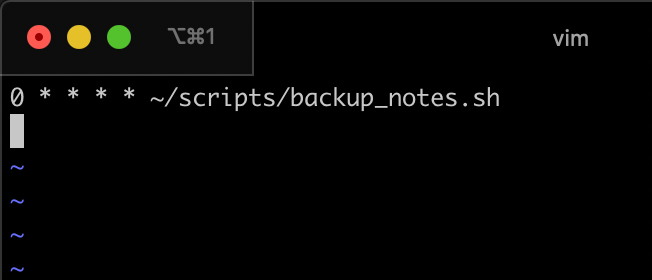
0 * * * * tells it that I want it to run on the 0th minute of every hour. Each star refers to a different time value.
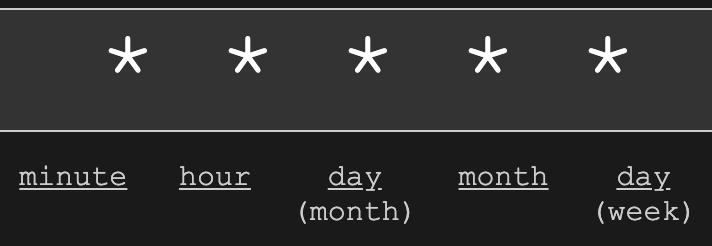
https://crontab.guru/ is really helpful for getting the right timing.
Now my backup_notes.sh script runs on every hour.
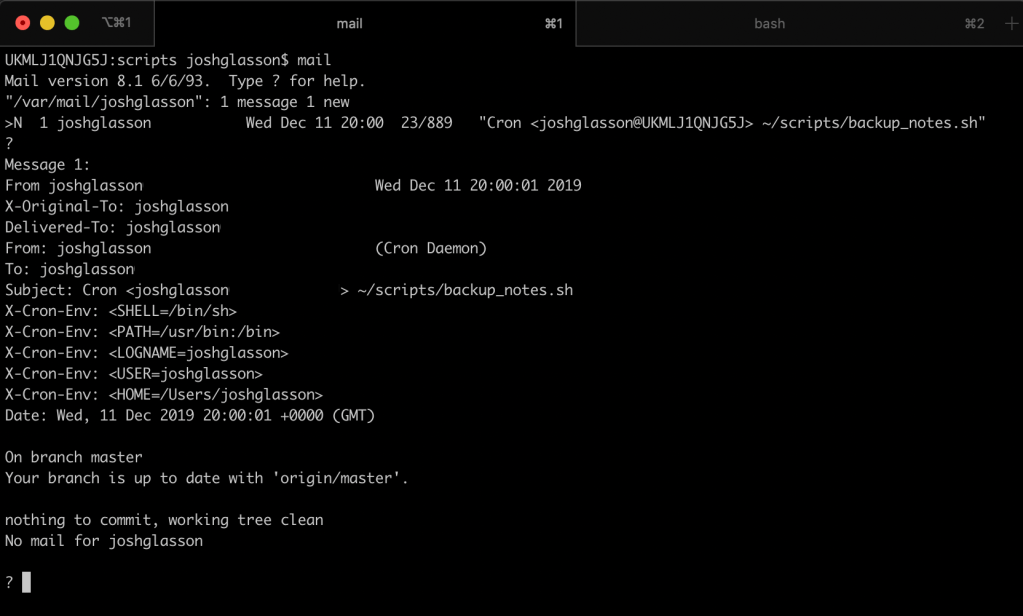
After every run you will get System Mail saved into your mail folder, /var/mail/user. This can be good if you want to check the log of the latest run, but it will get quite full and the command line reminds you very often that you have mail! You can check it by typing the mail command. As you can see below in the mail, it shows all the details, as well as what was printed out after the script ran. As my notes were already up to date, it tells me theres nothing to commit.
To help maintain the mail a bit, I added a line to my backup_notes.sh script:
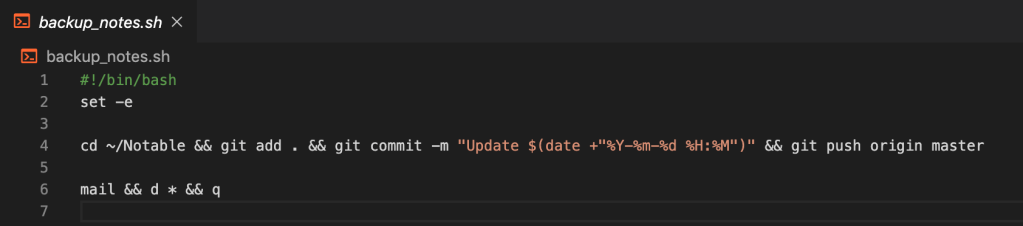
mail && d * && q goes to the mailbox and deletes all messages, then quits the mailbox. This way only the latest mail log will ever be in there.
You can find the list of all of my Knowledge Sharing posts here.
 Josh's Blog