

I recently came across the concept of using bash aliases to create shortcuts for commands in the terminal.
Alongside the funnier uses of this, I immediately thought that this would be very useful for saving time writing out longer commands (or more likely copy and pasting them from my notes).
UPDATE – 31st December
After upgrading to the new macOS, Catalina, my shell has changed from bash to zsh, which caused my shortcuts to stop working. To fix this, open or create a file called .zshrc in the same place as .bash_profile. Then in this file add the following: source ~/.bash_profile. Save this, and your old bash shortcuts should start working again!
Back to the original post…..
In order to do this, I opened my bash_profile in VS Code.
code ~/.bash_profile
At the bottom of the file I added the alias I wanted and what I wanted it to do, in this case I wanted to run a script I had written previously for connecting to an AWS jumpbox which linked to Jenkins, our CI/CD program, and Couchbase.
alias jenkins='~/scripts/connect_all.sh'
In order for it to work, I could either close my terminal and restart it, or run the below command to refresh the terminal.
source ~/.bash_profile
Now instead of writing out my whole command to run the script, I can simply type jenkins and it will run.

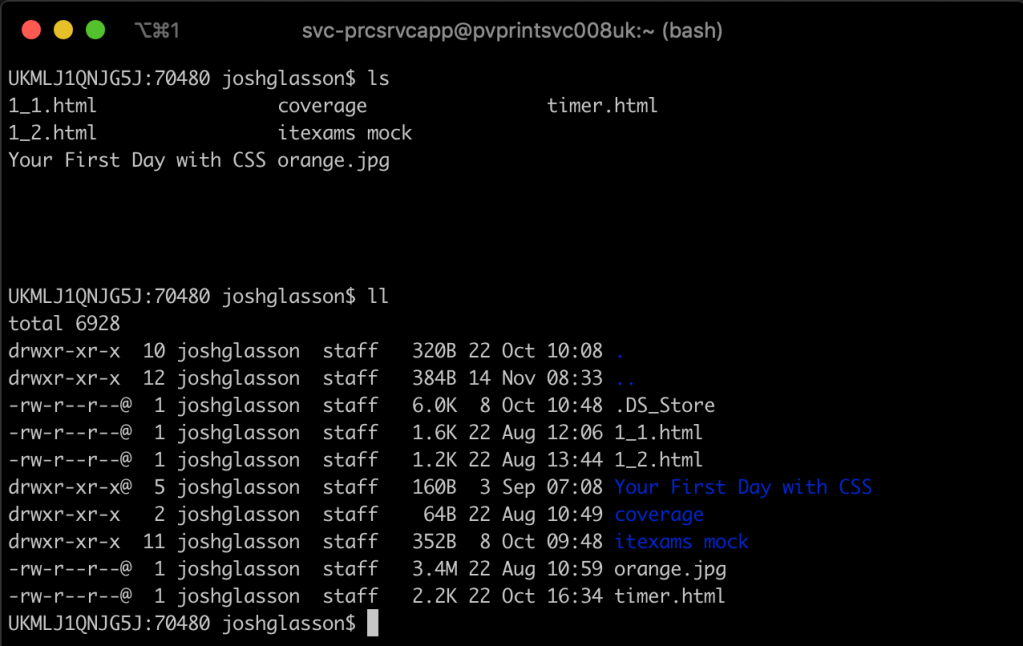
I set up a few more aliases for other scripts, and one useful one as a replacement for ls.
alias ll='ls -lhaG'
This works similarly to ls but gives you more information. Rather than just listing everything in the directory, it also shows you permissions, owner, size, and date last modified. It also highlights folders and shows hidden files.
Realistically these changes save me minimal time, but it all adds up, and I think of it more as a QOL improvement!
This is the first post of an eventual series of posts with helpful learnings and tips from my time starting out as a Software Developer. You can find the list of all posts here when more are added.
 Josh's Blog