

Tables
Fixture List
We originally wanted the fixture list to be a table, but earlier in the week we couldn’t get it to work. I think the problem was that we were trying to render a table for each item in the fixture array which was causing issues. Because of this we decided for the MVP we would just get something to show up, which ended up being this.
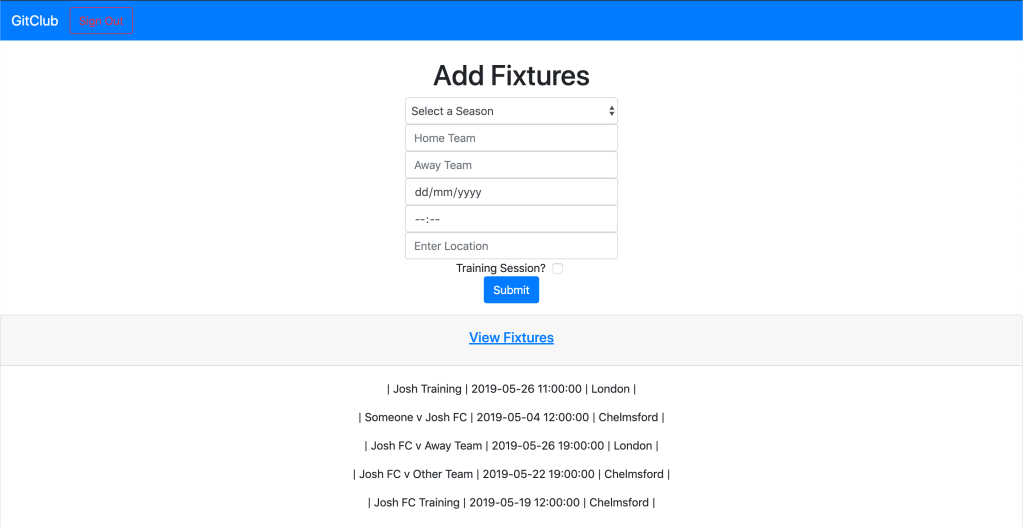
This morning before we started our work for the day I decided I would take a look at and try to get it to work. I came across a couple of React tags called <tbody> and <thead> which were the key to getting it to work. Using these I was able to create the headings and content for the table separately to the table itself. This meant I could map over the fixtures array and put each element inside <tbody> before passing that to my table, which allowed me to render each entry as a new row. The code below is what I had in the page where I wanted to render my table. I set my headers to a constant called headers and the the data to a constant called contents. contents is taking our fixtures state which is an array of fixtures from the database, sorting it by chronological order, and then passing each item into <Fixtures /> which is another React class. Both of these constants are then called inside the return() which is what shows on the page.
render() {

  const headers =   <thead class="thead-dark">
                        <tr>
                            <th>Fixtures</th>
                            <th>Date</th>
                            <th>Score</th>
                            <th>Location</th>
                            <th>Add Score</th>
                            <th>Delete Fixture</th>
                        </tr>
                    </thead>

  const contents = this.state.fixtures.sort( function(a, b){ return new Date(a.date) - new Date(b.date)})
                                          .map((item, key) => <Fixtures item={item} key={item.id} />)

    return (
    <div>
    <table class="table table-bordered">
        {headers}
        {contents}
    </table>
    </div>
    )
  }
The Fixtures react class is passed every item in the fixtures array one by one. Each one does the following.
 render() {
        return (
        <tbody>
          <td>{this.props.item.fixture}</td>
          <td>{this.prettyDate(this.props.item.date)}</td>
          <td>{(this.props.item.result === null ? this.prettyTime(this.props.item.date) : this.props.item.result)}</td>
          <td>{this.props.item.location}</td>
          <td>{this.state.showComponent ?  <div><AddResult item={this.state.fixtureid}/><button type="button" class="btn btn-danger form-inline btn-sm" onClick={this.cancelAddResult}>Cancel</button></div> : <button type="button" class="btn btn-success" onClick={this.addResult}>Add Result</button>}</td>
          <td><button class="btn btn-danger" onClick={this.deleteFixture}>Delete</button></td>
        </tbody>
         )
    };
Each <td> is a column on my table, corresponding to the <th>‘s in my headers. They are each extracting a different variable from the item passed in, as that is also an array! The out come of this is the below
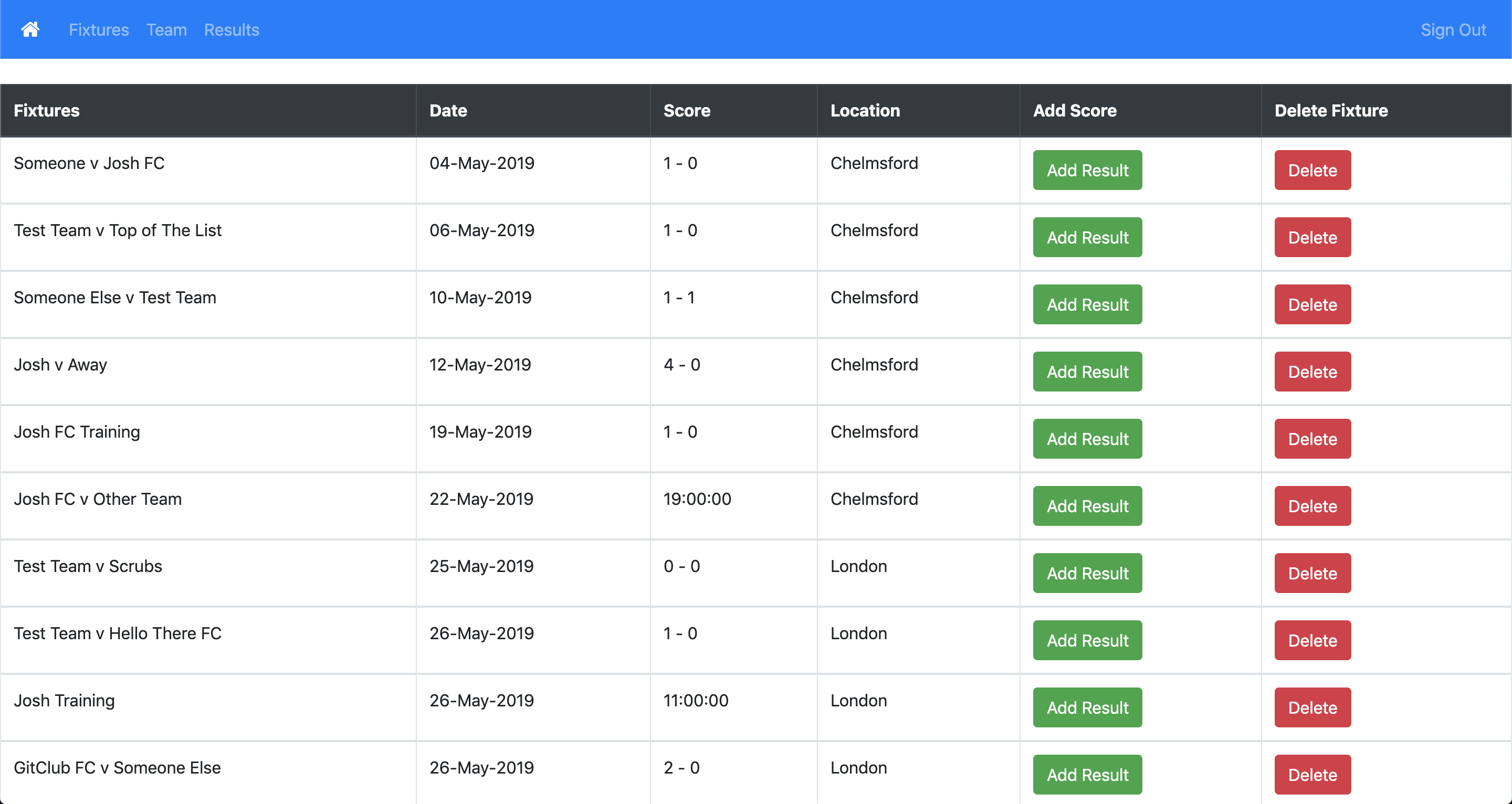
Phil yesterday had added the ability to add scores into our database, so I added a button that when clicked showed a form to enter the scores into.

This then posted to the database and displayed on the page.

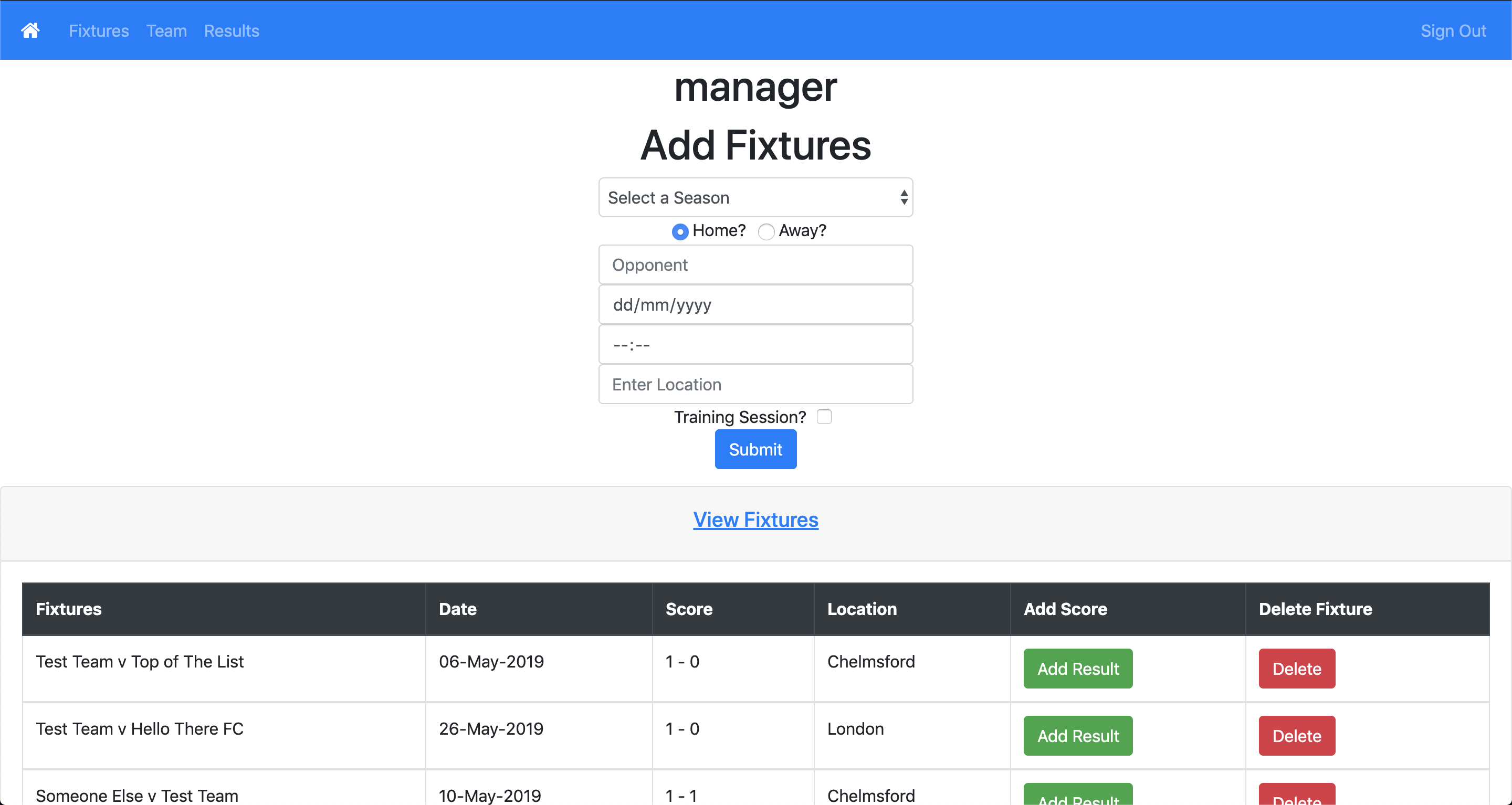
To keep things consistent, I updated the addFixtures page to display the same table, except it is sorted by latest added rather than date.
Availability
Sean started work on adding a table for confirming player availability for games which is another part of our MVP. He was able to get a table showing up, but we then needed to get our data into it. We began the afternoon mobbing this as a team to try and figure it out. The database we created for availability was simple, it just took in fixture_id and user_id, as all we really need is to be able to find a list of confirmed players by fixture. So we created the database. Now we had this, and a basic table which rendered a check box for we put into the table array (which was at this time hardcoded).
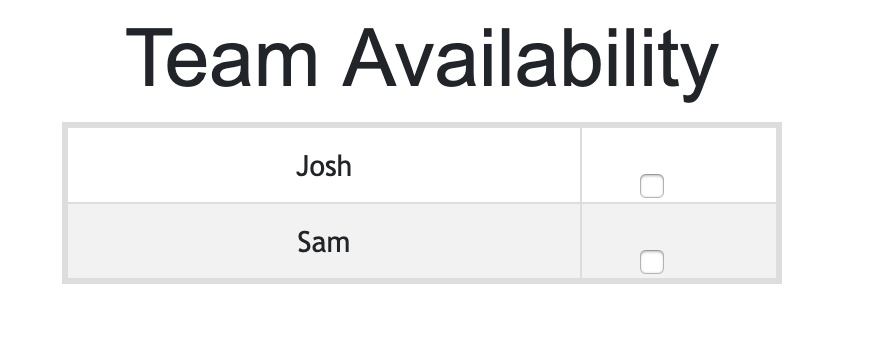
We now had to change this so it would show our actual users in the specific logged in team, and also make checking the boxes do something. As we already had teamid on the page, getting our list of players was fairly straightforward, we just needed to fetch from the users api, using teamid as the search criteria. We’ve done this countless times already, so that was straightforward enough. We then used a similar method to the fixture table, where we mapped over the names to create a row for each.
The harder part was making it so the check box did something. To do this, I knew we would need to assign each checkbox an individual ID, so we knew which one was being checked. The easiest way to do this was by using the userid of the player the box was next to. We had already fetched our user data from the api, so we just had to get the ID. Again this is something we had done before so after a bit of trial and error we got that working.
We added a method in to handle when the box is ticked. Initially I used onClick to redirect to the method, however I changed to onChange as this let me pass an event through with the method which was key. Passing the event through let me access the information of the check box that sent me there. This meant I could access the userid I had assigned the box for each person, and POST that to the api to create an availability entry. userid was only half the battle though.
fixtureid was the other column in the availability database. Unlike users, we hadn’t used fixture on this page yet, so we had to do a new fetch for it. But the challenge was which fixtureid do we actuall need. We wanted it to be the next game, but our games in the database were not sorted in any way, and even if they were it would be tough to find the one closest to todays date. Here is how I did it in the end!
fetch('/api/fixtureses/search/findByTeamid?teamid='+ this.state.teamid, {
             method: 'GET',
             headers: {
             'Content-Type': 'application/json',
             },
             credentials: 'same-origin'
             }).then((response) => {
                  if(response.ok) {
                    return response.json();
                  } else {
                    throw new Error('Server response wasn\'t OK');
                  }
                })
                .then((json) => {
                var games = [];
                json._embedded.fixtureses.map((item) => {if(new Date(item.date) - new Date() > 0){
                                  games.push(item)}})
                  this.setState({allFixtures: games.sort( function(a, b){ return ((new Date(a.date) - new Date()) - (new Date(b.date) - new Date()))})})
                  this.setState({nextFixture: this.state.allFixtures[0]})
                  this.setState({nextFixtureID: this.state.nextFixture._links.self.href.split("/")[this.state.nextFixture._links.self.href.split("/").length-1]})
                  console.log(this.state.nextFixtureID)
                });
This took me some trial and error to get right, but I was very pleased when I did! I will break it down more below to explain what is happening.
fetch('/api/fixtureses/search/findByTeamid?teamid='+ this.state.teamid, {
             method: 'GET',
             headers: {
             'Content-Type': 'application/json',
             },
             credentials: 'same-origin'
             }).then((response) => {
                  if(response.ok) {
                    return response.json();
                  } else {
                    throw new Error('Server response wasn\'t OK');
                  }
                })
This part is me going to the fixtures api and searching by teamid. This gives me back all the fixtures related to that teamid in an array. This comes back as response. The .then is checking that response is valid, and not returning something like 404. If it is ok it returns response.json() which converts it to json data.
.then((json) => {
                var games = [];
                json._embedded.fixtureses.map((item) => {if(new Date(item.date) - new Date() > 0){
                                  games.push(item)}})
This part then takes that json data and accesses the fixtures array within it.json._embedded.fixtureses is where the array is. We then map over it, taking each item in the array, turning it into a date object by passing it into new Date() and taking away todays date. We are checking if it is more than 0, and if it is, we are pushing it into a new games array which we created at the top. This gets rid of all the games that have already passed.
this.setState({allFixtures: games.sort( function(a, b){ return ((new Date(a.date) - new Date()) - (new Date(b.date) - new Date()))})})
                  this.setState({nextFixture: this.state.allFixtures[0]})
                  this.setState({nextFixtureID: this.state.nextFixture._links.self.href.split("/")[this.state.nextFixture._links.self.href.split("/").length-1]})
These next 3 bits are just setting some states in the code. The first one is the most complex. I am setting allFixtures to be the same as my games array, but sorted in ascending date order. This way I know that the first item in the allFixtures array, is the next closest game.
I am then setting my nextFixture state to that first item in the array, by calling allFixtures[0].
Finally I am setting nextFixtureID to the id of the nextFixture, which we get by accessing a certain part of a certain item in the array!
This whole thing gave me the fixtureid I needed. Now I could use both in a fetch POST to the database like we wanted!
Todays song of the day

 Josh's Blog