

Acebook Continued
Today we got back into our team and carried on with Acebook.
Sorting by Date
On Friday afternoon we were trying to implement a feature, which was that the posts should be shown in reverse chronological order. We were having some issues with this, as the way they were displayed was through an API request made by React. This was in the template we were given, not something we had written, and as we had never used React before we were not sure how to get it working.
This morning we spoke to the other team and found that Deanna had got it working, and annoyingly we were very close to the answer!
The problem was we were storing the date as text, so when we got it back from the database, it didn’t know how to sort it properly. The solution was to convert it back to a date, then apply the sorting, which was a very easy fix!
Jose did also find a way to do it with the date still as a text string but this was a lot more complex and used a lot more code, so we went with the date method!
Users Can Sign Up
The next feature we decided to tackle was the ability for users to sign up. We knew this would be quite similar to posting in many ways, so we followed similar steps.
- Created the database table
DROP TABLE IF EXISTS users;

CREATE TABLE users (
  id bigserial PRIMARY KEY,
  name varchar(250) NOT NULL,
  email varchar(250) NOT NULL UNIQUE,
  password varchar(250) NOT NULL
);
- Created the
Getrequest for a sign up page
@GetMapping(value = "user/new")
public String user(Model model) {
  model.addAttribute("user", new UserForm("name", "email", "password"));
  return "register";
}
- Created the registration html page with the form on called
register
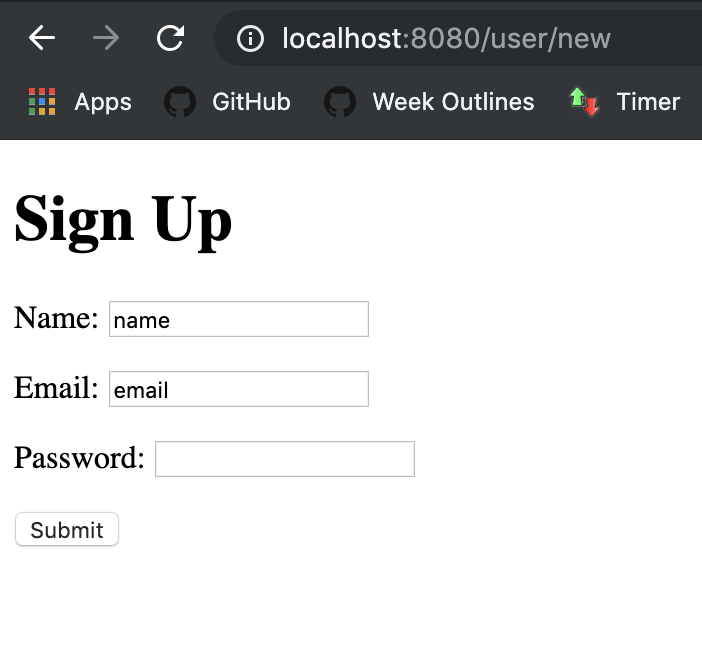
<!DOCTYPE HTML>
<html xmlns:th="http://www.thymeleaf.org">
<head>
    <title>Getting Started: Handling Form Submission</title>
    <meta http-equiv="Content-Type" content="text/html; charset=UTF-8" />
</head>
<body>
<h1>Sign Up</h1>
<form action="#" th:action="@{/user}" th:object="${user}" method="post">
    <p>Name: <input type="text" th:field="*{name}" required="true" /></p>
    <p>Email: <input type="email" th:field="*{email}" required="true"/></p>
    <p>Password: <input type="password" th:field="*{password}" required="true"/></p>
    <p><input type="submit" value="Submit" /></p>
</form>
</body>
</html>
- Created a
UserFormclass to accept the data
public class UserForm {

    private String name;
    private String email;
    private String password;

    public UserForm(String name, String email, String password) {
        this.name = name;
        this.email = email;
        this.password = password;
    }

// Getter and Setter Methods omitted for brevity

}
- Created a
Postrequest to add the data to the database
@PostMapping(value = "user")
public RedirectView user(@ModelAttribute User user) {
	userRepository.save(user);
	return new RedirectView("/");
}
- Created a
UserRepositoryrepository file to make the request to the API
package com.makersacademy.acebook.repository;

import com.makersacademy.acebook.model.User;
import org.springframework.data.repository.CrudRepository;

public interface UserRepository extends CrudRepository<User, Long> {

}
- And created the
Userclass which posts to the database
@Data
@Entity
@Table(name = "USERS")
public class User {

    @Id
    @GeneratedValue(strategy = GenerationType.IDENTITY)
    private Long id;
    private String name;
    private String email;
    private String password;

    private User() {

    }

    public User(String name, String email, String password) {
        this.name = name;
        this.email = email;
        this.password = password;
    }
}
And this worked perfectly, a user was created and their information was saved!
Encryption
However currently our passwords were being saved as plain text, which is obviously a terrible idea! So we used our old favourite BCrypt to hash and salt the password:
    public User(String name, String email, String password) {
        this.name = name;
        this.email = email;
        this.password = this.setPassword(password);
    }

    public String setPassword(String password) {
       return this.password = BCrypt.hashpw(password, BCrypt.gensalt());
    }
So now our passwords were being encrypted before entering our database

We used the information from the spring docs to get BCrypt working.
Email Address
You may have noticed in our SQL query when we created the user table, we added UNIQUE to the end of our email column. This is so that an error will be thrown if you try to set up an account with an email that already has an account. Currently we don’t have an error page, so it just takes you to a generic one, but the idea is we will have a page telling the user they already have an account!
Getters and Setters
In my code for the UserForm class you may noticed I added a comment mentioning that the Getter and Setter methods had been omitted. I left them out because they are very simple methods, which are used very often in classes. They basically do what they say on the tin.
Getter
A Getter method gets a variable. That is it!
public String getName() {
        return name;
    }
In the class the above method is in, a name variable has been defined at some point, and the getName method just goes and retrieves it. This allows you to keep the variable private but still use it outside of the class.
Setter
A Setter variable sets a variable. Just as easy!
public void setName(String name) {
        this.name = name;
    }
Using the setName method changes the name variable to whatever you put in. Doing it this way means that someone couldn’t just run Class.name = "New Name" from the terminal, they would need to use the setName method.
Users Can Sign In
As well as signing up, we wanted users to be able to sign into their accounts. To do this we had to add a sign in page, and a sign in form. It worked pretty much the same as the Post and User classes so I won’t go fully into detail. Basically when signing in, it takes the password entered and compares that to the password associated with the email address entered.
@PostMapping(value = "user/authentication")
	public RedirectView signIn(@ModelAttribute SignInForm user) {
		if (SignIn.checkPassword(user.getPassword(),userRepository.findByEmailIn(user.getEmail()).getPassword())){
			System.out.println("user matches");
		}
		else {
			System.out.println("does not match");
		}
		return new RedirectView("/");
	}
SignIn.checkPassword() is a method that compares the 2 passwords:
public class SignIn {
    public static boolean checkPassword(String password, String stored_hash){
       return  BCrypt.checkpw(password, stored_hash);
    }
}
BCrypt handles the check for us and returns true or false, which we can then use to authenticate our user.
Going forward we are hoping to add a Session so that Posts and Likes and things can only be made when the user is signed in, but we haven’t quite figured that out yet, thats a job for tomorrow!
Heroku
To test if our website works in a production environment, I pushed it to Heroku this morning. This was before we added the user functionality, but I have since updated it with the rest of our changes! Using Heroku to see if everything works in the live environment will be really useful going forward.
Thanos
In Google at the moment, theres a cool easter egg. If you type Thanos in to your search bar, then click the gauntlet, he will snap away half the results! Here is a reddit post about how it works.
Song of the day:

 Josh's Blog